
Online multi-model AI video creation
Your storydeserves a great shot.
Create product showcases, advertising assets, social clips, storyboards and character animation by choosing Kling, MiniMax, Seedance, Veo and other models in one workbench. Connect an AI assistant through MCP to call video generation directly.
- Choose by budget
- Multiple models in one place
- MCP access supported
AIYTING / MOTION STUDIO
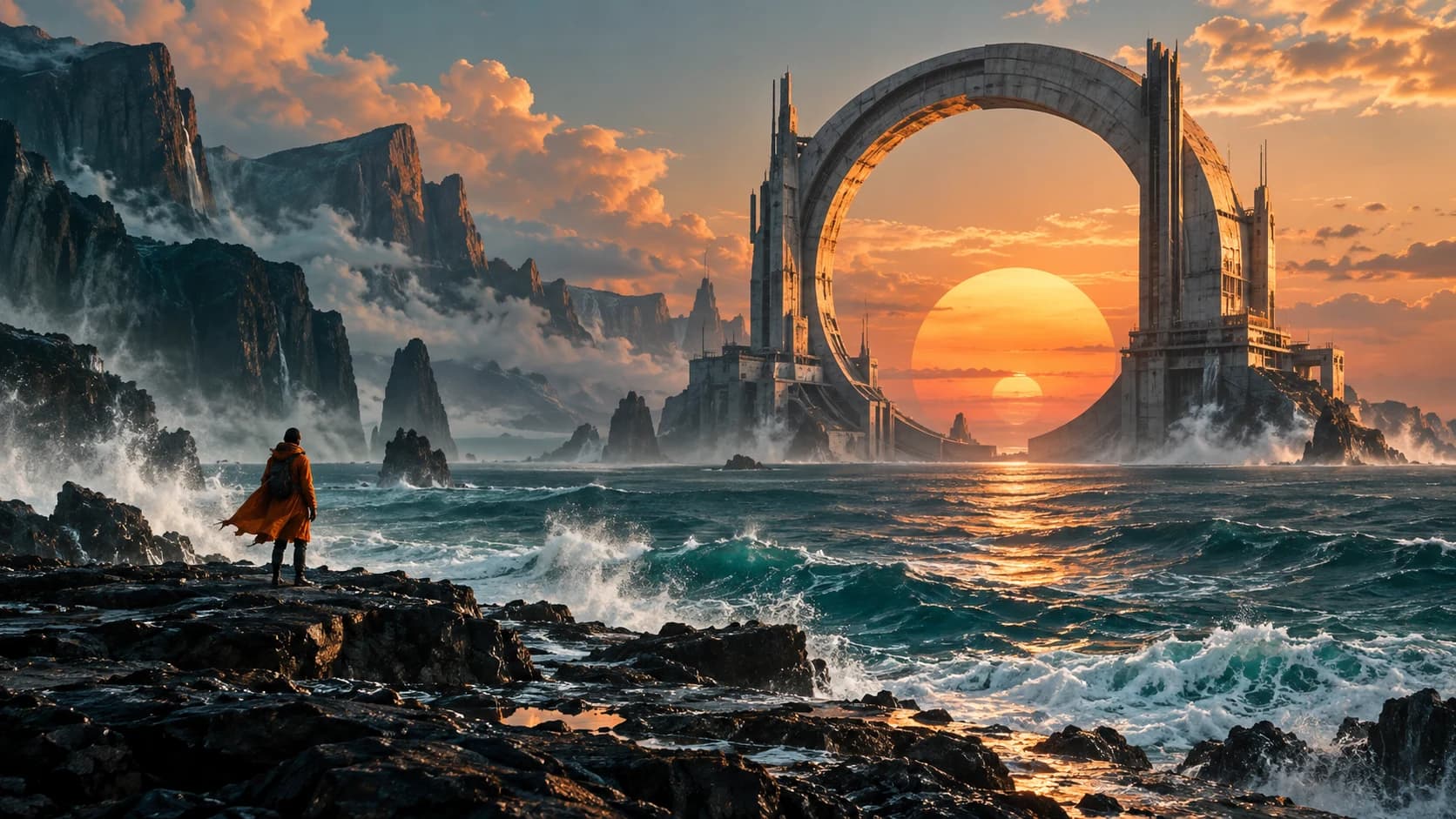
Let the world enter the frame.
Creative directions
Bring your story into motion.
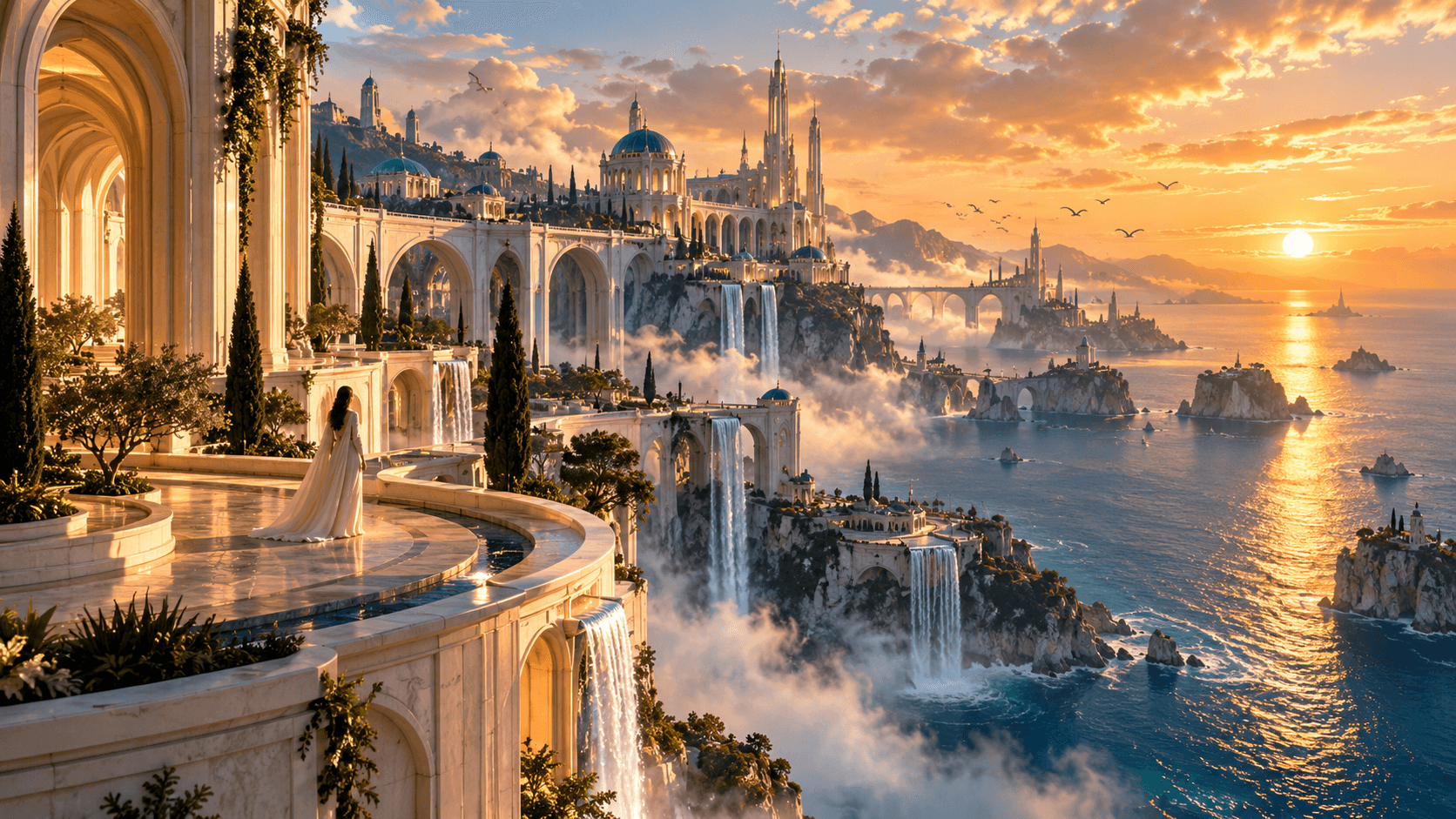
Creative visual preview · These scenarios describe creative directions; the exact result depends on the inputs and model.
03 / Choose among multiple models
All video models and reference prices
Model reference price

MiniMax H3
¥0.15/second and up
From 15 points/second
This is a reference price for selected routes; use the quote shown before submission.
Start AI videoBase exchange rate
1CNY
100Points
Base exchange rate: CNY 1 = 100 points; 1 point = CNY 0.01.
CNY reference prices use this base ratio and exclude promotional or bonus points; the recharge amount, credited points and validity period are determined by the recharge page and account records.
Explore all models and reference prices11
Kling O3
¥0.90/request and up
From 90 points/request
1080p720p
Kling Omni 视频生成
¥7.50/request and up
From 750 points/request
Check duration and settings in the workbench
Kling 视频生成(15秒)
¥6.00/request and up
From 600 points/request
Check duration and settings in the workbench
MiniMax H3
¥0.15/second and up
From 15 points/second
1080p768p480P608P768P832P

Seedance 2.0
¥0.58/second and up
From 58 points/second
1080p2k4k720p
Seedance 2.5
¥0.75/second and up
From 75 points/second
720p1080p
Seedance Fast
¥0.50/second and up
From 50 points/second
720p
Seedance Mini
¥0.15/second and up
From 15 points/second
720p

Veo Omni 视频生成(10秒)
¥3.20/request and up
From 320 points/request
Check duration and settings in the workbench
Veo 3.1 视频生成(8秒)
¥1.40/request and up
From 140 points/request
Check duration and settings in the workbench
Veo 3.1 Fast 视频生成
¥0.80/request and up
From 80 points/request
Check duration and settings in the workbench
For per-second routes, calculate the total with the duration. Prices vary by route and settings; use the complete quote shown before submission.
04 / Creative directions
Start with one clear shot
010203040506
E-commerce and product showcase
Product motion showcases, product-use scenes and detail-page video assets.
Advertising and brand content
Advertising shots, brand mood, campaign promotion and new-product showcases.
Social media and teaching
Short-video assets, backgrounds for educational content, course demonstrations and transitions.
Stories and character animation
Storyboards, character movement, animated characters and short-film ideas.
Spaces and scene shots
Architectural spaces, interiors, natural landscapes and camera-tour assets.
Game and music visuals
Game concept shots, music mood visuals and creative motion assets.
These scenarios describe creative directions; the exact result depends on the inputs and model.
05 / Creative workflow
Start video creation in four steps
Workspace interface illustration
- 01
Describe the shot
Describe the subject, action, scene and camera movement. When using an image, add the change you want to see.
- 02
Choose a model
Open the video workbench and check the selected model's supported inputs and settings.
- 03
Confirm settings and points
Choose an available duration, aspect ratio and resolution, then check the total points for this generation.
- 04
Review and iterate
Check the task status after submission. Once you have a result, adjust the prompt or settings for the next creation.
Product visualShot concept previewCreative visual preview
Image-to-video
From product image to moving showcase
Use your product photo to make a retouched or scene image, settle the product appearance and composition, then upload it to an image-to-video model and describe the desired action and camera change. Check product details after generation and download the asset for editing, extending static selling points into short video content.
Make a video from a reference image06 / MCP CONNECTION
Bring creation into your workflow
Use MCP to let an AI assistant call video models directly
Connect an MCP-capable AI assistant such as Codex, Claude Code, OpenCode or Z Code to query models, estimate cost, create images or videos and retrieve task results as part of your workflow.
Connect my AI assistantCodexClaude CodeOpenCodeZ Code
AI assistantDescribe the creative briefMCP
 AIyting MCPQuery · quote · generate
Video result
Retrieve tasks and creations01What is AI video generation?
AI video generation lets a model create moving scenes from text, images and other inputs. Text can describe the scene, action and camera; a reference image can set the visual direction for a person, object or scene. Supported inputs depend on the selected model and route.
02What is the difference between text-to-video and image-to-video?
Text-to-video builds a scene from a written description. Image-to-video starts with a reference image and uses text to add motion, camera direction or mood. Start with text for a new scene, or choose a reference-image model when you already have a visual direction.
03Which video models does AIyting support?
The AIyting workbench offers several video models and routes, including Kling, Seedance and Veo families. Check the workbench for current versions, inputs, durations and resolutions. Capabilities and billing can differ between models.
04How much does AI video generation cost?
Billed by points. Base exchange rate: CNY 1 = 100 points; 1 point = CNY 0.01.This page shows model points and CNY reference prices.For a per-second route, combine the rate with duration: 15 points/second equals 0.15 CNY/second; at that rate and setting, 5 seconds is 75 points, or 0.75 CNY.Prices vary by model, route and settings; use the complete quote shown before submission.
05Can video models be called through MCP?
Yes. Create an API key from the site's Codex image entry and connect an MCP-capable assistant such as Codex, Claude Code, OpenCode or Z Code. It can query video models, estimate cost, submit tasks and retrieve results using account points.
06Can I make a video from a product image first?
Create a product scene in the AI image workbench, upload it to an image-to-video model after confirming the frame, and describe product motion, environmental changes and camera movement. Image and video are separate submissions and charges; download the result for further editing.
07How can I reduce the cost of experimenting with AI video?
Start with one subject, one action and one camera goal. Compare routes that support the required input, then choose a suitable duration and resolution. Validate the direction with a short clip before continuing; recheck total points after changing settings or references, and check existing task status while processing.
08Do I need to resubmit while a video is generating?
After submitting, check the task status and result in the workbench. Processing times vary by model, so wait and review the existing task first. If you need another generation, confirm the new task's settings and points. Failure refunds and partial-success settlement follow the task status and service terms.
Bring ideas to life
Start with one clear shot